Choose when your schedule becomes visible
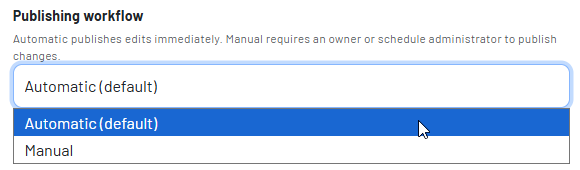
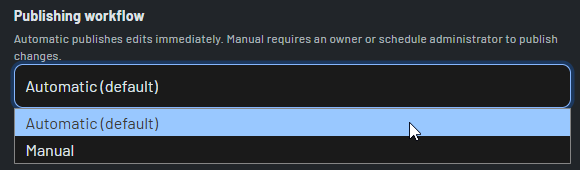
Automatic publishing keeps the schedule live. Manual publishing gives your team a deliberate draft-and-release workflow.
Match publication behavior to the way your team plans
Automatic is the default for a schedule that should reflect approved edits immediately. Manual is the safeguard for teams that need to review a complete draft before staff see it.
Automatic
A valid edit is written directly to the schedule and is visible according to the viewer’s role.
Manual
An edit is held as pending until an authorized schedule administrator publishes it.
Staff view
Only the published result is exposed to staff with the non-edit role.
Make a change without making an announcement
- Schedule edits are stored as pending data rather than immediately replacing the staff-visible schedule.
- Pending cells receive an orange border and a menu indicator, making unpublished work easy to find in the schedule grid.
- Editing the same cell again updates its pending record, so the draft reflects the latest intended code, number, free text, or option.
- Repeating edits preserve the associated repeating code or number/free-text value in the pending record, so a release does not silently lose the rest of the entry.
- The pending state can include a schedule entry’s existing values while one part of the entry is being changed.
Release the part of the draft that is ready
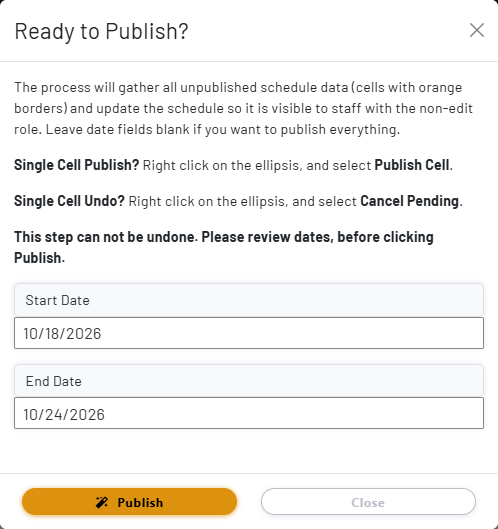
Publishing is intentionally flexible: release one cell after a focused review, or publish a date range when a larger block of the schedule is complete.
Single-cell publish
Right-click a pending cell and choose Publish Cell when one correction is ready.
Date-window publish
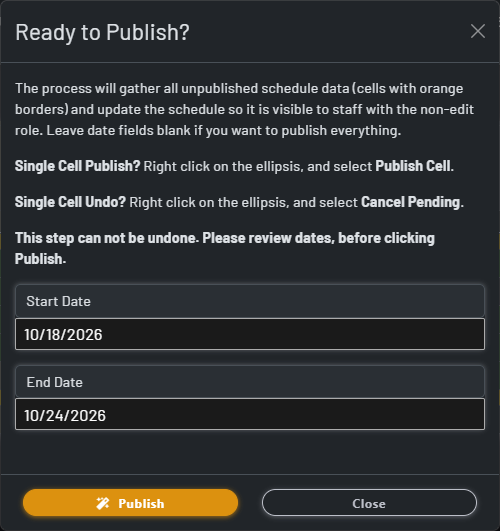
Enter a start date, an end date, both, or neither. Blank dates publish all pending schedule data in scope.
Cancel pending
Discard a pending cell with Cancel Pending when the draft should not reach the live schedule.
Keep the workflow understandable at a glance
- The schedule publish indicator changes when pending records exist, so administrators know a release is waiting.
- The publish dialog accepts optional start and end dates and validates date input before processing.
- Publishing replays the pending code or number/free-text and option values into the schedule, then removes the pending record after a successful update.
- After a successful release, the schedule reloads and the pending visual treatment is cleared from the staff-facing result.
Give publishing authority to the people who can validate the schedule
Role-aware access
Schedule administrators can edit and publish. Staff-facing, non-edit views receive only published schedule data.
Review before release
Manual mode supports coverage checks, code validation, and collaborative review before changes become operational.
A deliberate final step
The publish dialog warns that publishing cannot be undone through the same workflow, so dates and pending cells should be checked first.
Desktop and mobile entry points
The publish action is available through schedule controls, including the compact mobile control, while cell-level publishing remains available from the cell menu.
Move at the pace your operation requires
Use Automatic when speed and a continuously current schedule matter most. Use Manual when the schedule is a draft, multiple people are reviewing changes, or a coordinated release is safer than incremental visibility. Both modes keep the schedule workflow familiar; the setting controls when a valid edit crosses from working data into the shared schedule.