Your schedule, where your day happens
Send MyStaffSchedule assignments to Google Calendar or Microsoft Outlook, so the shifts you rely on are available alongside the rest of your life.


Keep one dependable view of your commitments
- Connect the schedule you work from to the calendar you already check.
- Choose a schedule and your associated staff member, then send those assignments to a Google Calendar or Microsoft Outlook calendar you authorize.
- Select the destination calendar that works for you; your personal calendar, a shared family calendar, or another calendar you are permitted to manage.
- Create more than one sync when you need the same schedule available in more than one external calendar.
Connect with the calendar your team already uses
A clear authorization step gives MyStaffSchedule access only after you choose the account and calendar.
Google Calendar
Authorize your Google account, select a calendar, and optionally apply a Google Calendar event color to the assignments MyStaffSchedule creates.
Microsoft Outlook
Connect an Outlook calendar through your Microsoft account and keep scheduled assignments visible with your work and personal events.
Apple Calendar
Use Apple Calendar through the calandar account you've already connected.
Bring your schedule to Apple Calendar
- First, configure and verify a Google Calendar or Microsoft Outlook sync in MyStaffSchedule.
- On your Apple device, add that Google or Microsoft account under Calendar Accounts (or Internet Accounts on Mac), then enable Calendars.
- Apple Calendar displays the events from the connected account, giving you a convenient Apple experience without maintaining a separate sync configuration.
Control what Calendar Sync maintains
Choose the planning horizon
Maintain assignments 8, 30, 60, 90, or 180 days ahead, or keep a full year of upcoming work on your calendar. This syncing can be edited at any time.
Set reminder preference
Turn reminders on or off for new calendar events. Reminder timing is handled by your calendar provider and can depend on the assignment details.
Keep ownership clear
MyStaffSchedule manages the events it creates in the destination calendar, leaving your other calendar events unaffected.
Updates that follow the schedule
- Calendar Sync processes daily to keep the external calendar aligned with the schedule.
- Creating, reconnecting, or changing an authorized sync also starts a refresh, so new changes propagate immediately.
- The Calendar Sync page shows the latest completed sync time and the status of each connection, making it easy to confirm that access is still active.
- If provider access expires or is revoked, the connection is clearly marked for reauthorization instead of slipping through the cracks.
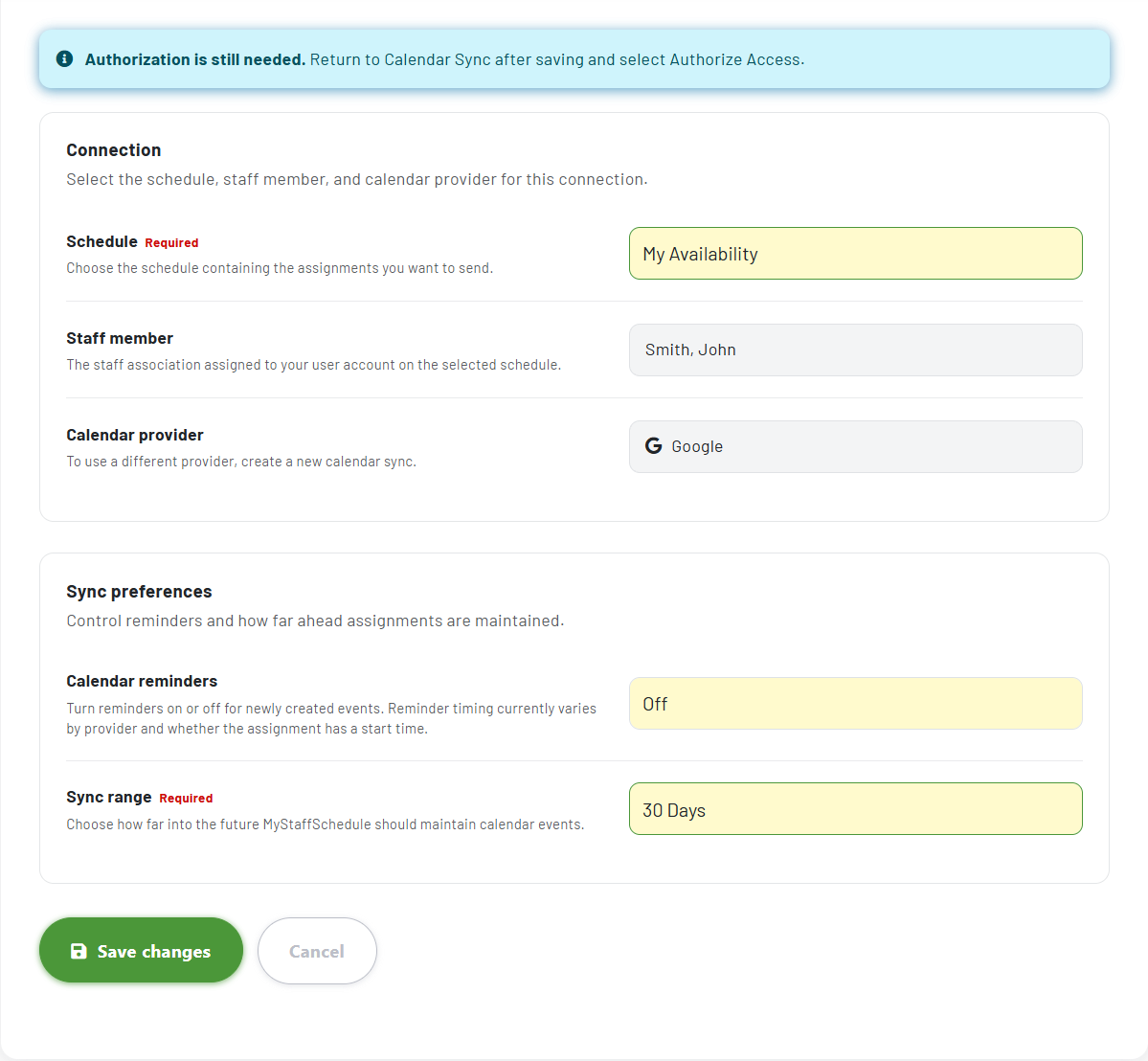
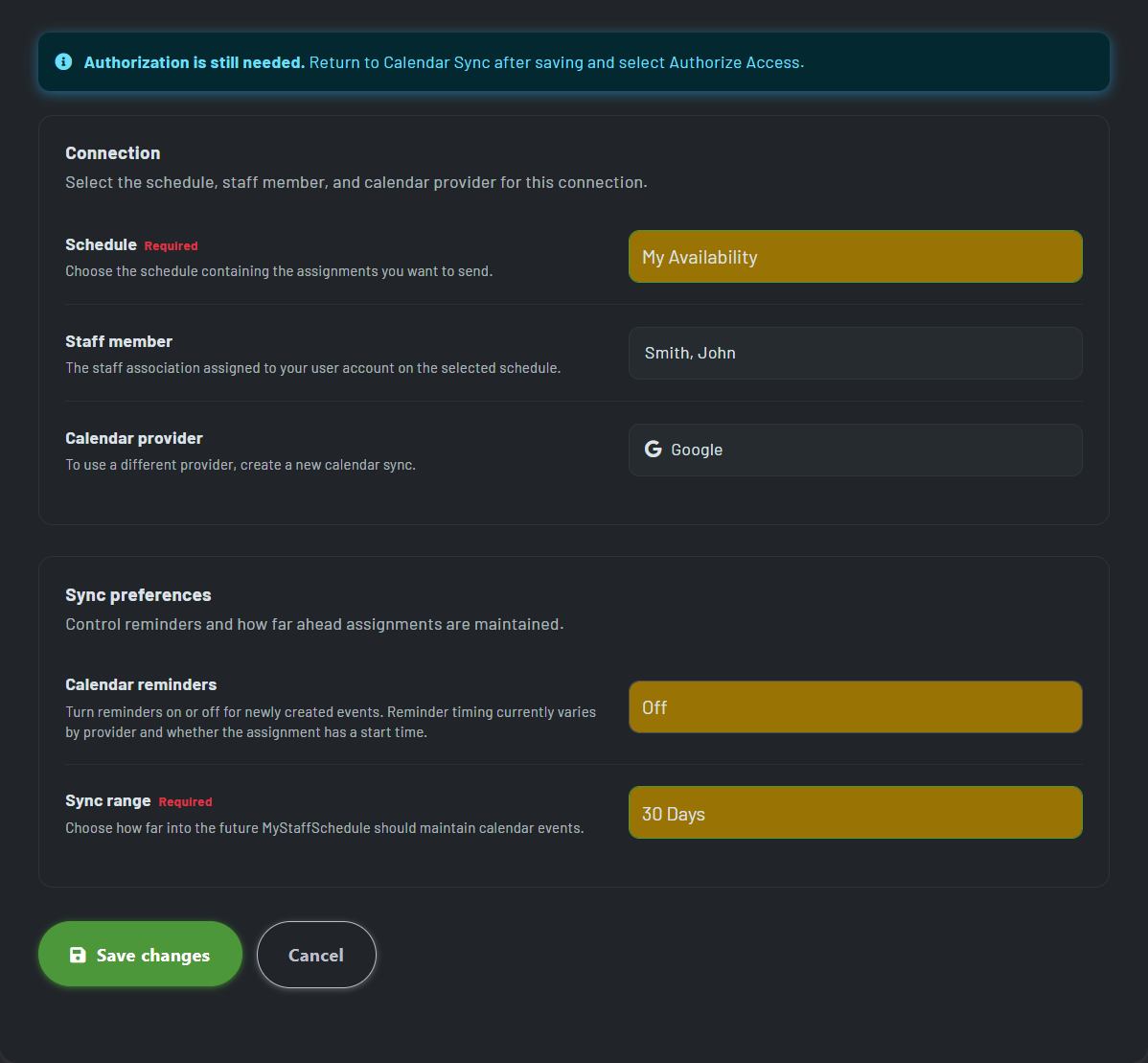
- The target schedule can be selected, defaulting to My Availability but also as an open for any schedule containing a staff-user connection. Users can create multiple connections as desired, including for multiple schedules and companies.
From schedule to calendar in a few deliberate steps
1. Create the connection
Choose the schedule, staff association, and provider that belong together.
2. Authorize and select
Authorize the Google or Microsoft account and select the calendar where MyStaffSchedule should create events.
3. Review and stay current
Set your range and reminder preferences, then return anytime to see status, adjust the connection, or reauthorize access.