Flip Schedule Usage
Alternate how you view your schedule at any time.
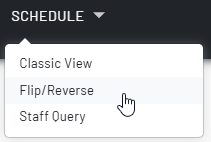
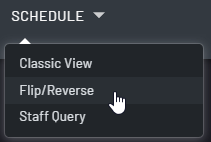
Examine Your Schedule with Reverse Schedules
- When Open Shifts are enabled, Flip/Reverse Schedule sorts them by the applicable , , , or unassigned categories for each date.
- Reviewers can see open-shift demand beside existing coverage.
- Requests and Notices are preserved to highlight which dates require extra attention.
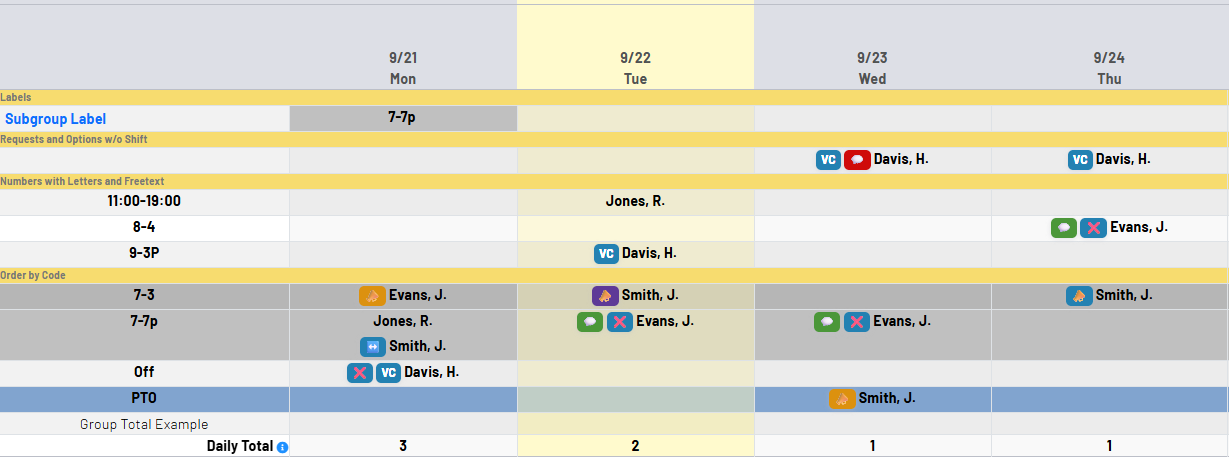
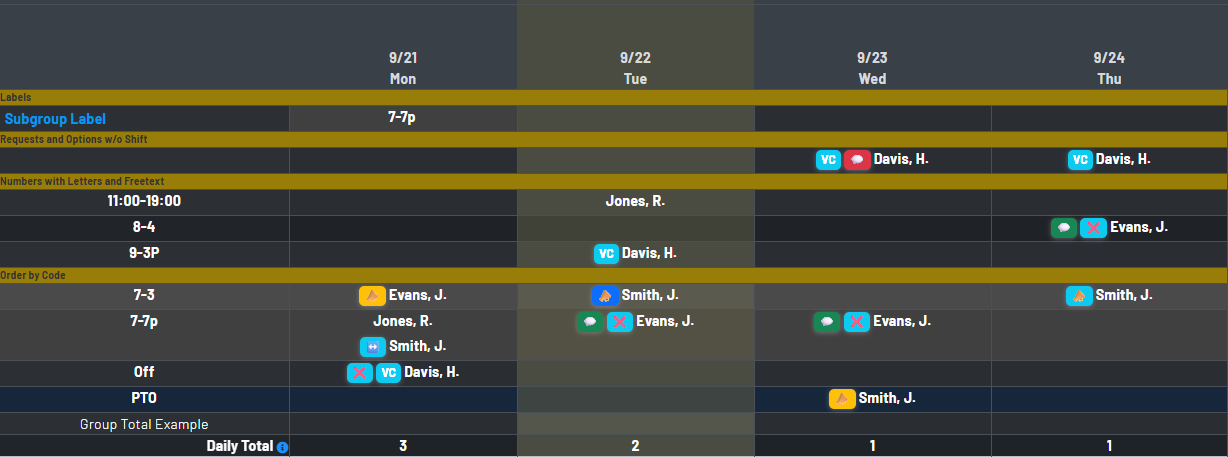
Break down your planning needs by role
- Manage requests, open shifts, and validation directly from the flip schedule context.
- View vital user information such as credential status and expirations.
- Use the legend to view code and option descriptions at any time.
Cleanly separate your schedule by category
Invert the focus of your schedule to provide more clarity on your weekly needs
Order by Code
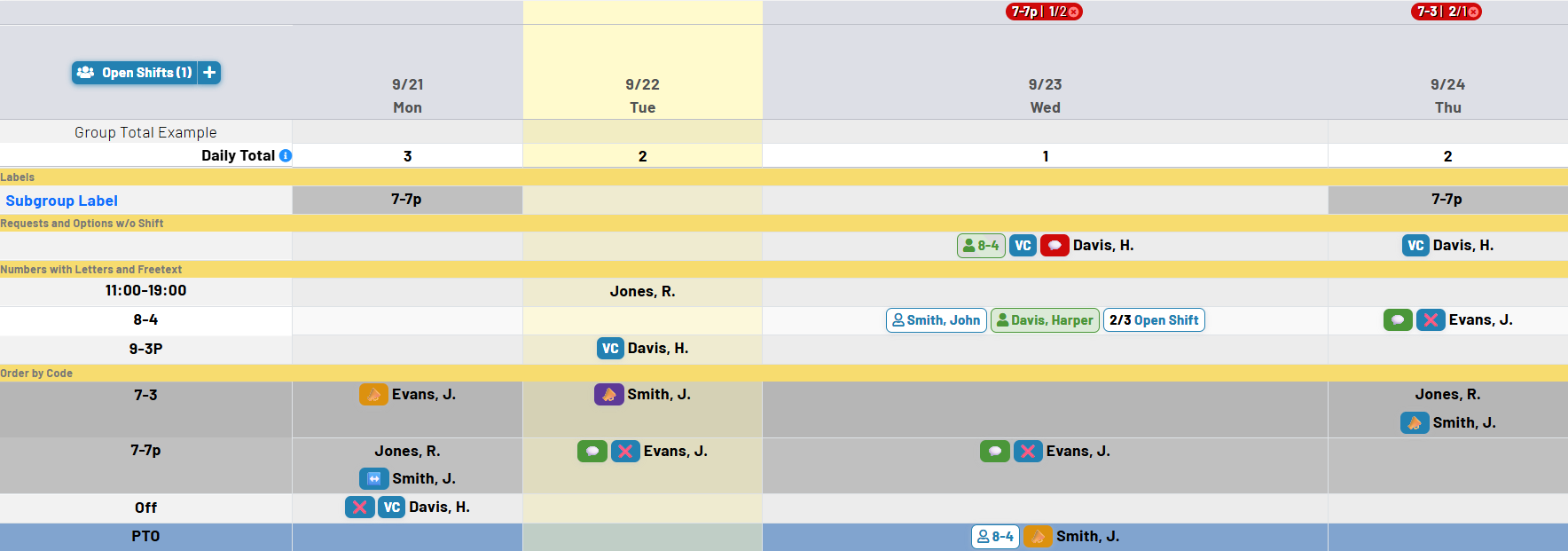
All codes are displayed prominently, showing exactly who is scheduled on a code-by-code basis.
Numbers with Letters and Freetext
Free-text entries and numbers with letters are displayed, ensuring custom schedule entries aren't left behind.
Requests and Options w/o Shift
Requests and options are separated when there isn't an associated shift proving excellent for off days, vacations, and any other possible entry.
Intuitive controls
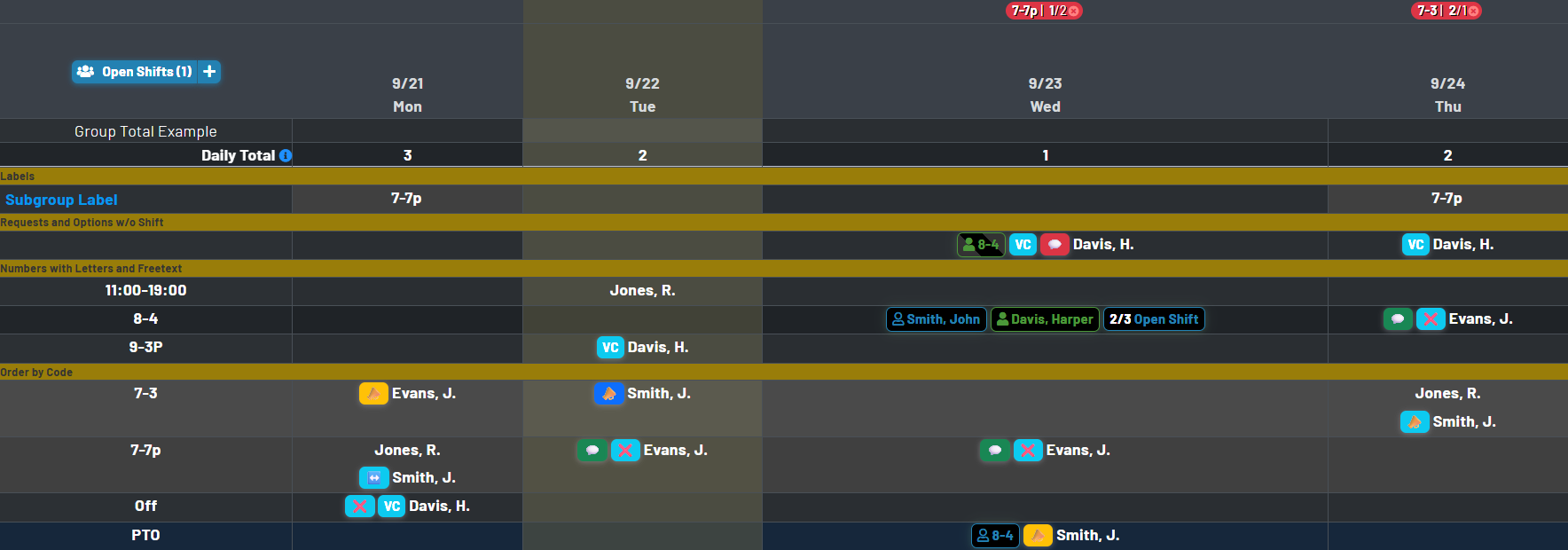
- Flip Schedule inverts traditional views, grouping rows by codes, numbers, free text entries, shiftless requests/options, and information labels.
- Relevant sections on appear when data exists on the schedule, avoids empty categories and links without data.
- Dates remain visible while highlighting the current date as well as weekend entries.
- Color codes transfer to the layout and preserve your normal formatting for easy scanning.
- A print-friendly layout allows you to share a one-week, two-week, four-week, or monthly output
Preserve the context attached to every schedule entry
Code order and visual identity
Code groups follow the configured ordering and retain their color treatment and abbreviations, making familiar coverage areas easier to recognize.
Options stay visible
Options remain attached to the appropriate person and day, including in the separate requests-and-options area when no shift is assigned.
Requests in schedule context
Request and notice badges can appear with the related person and date, so availability context is visible alongside coverage.
Staff details at hand
Names, staff row identifiers, configured options, and relevant staff information remain available in the reverse view.
Capture the details your team needs
Flexible schedule timespans
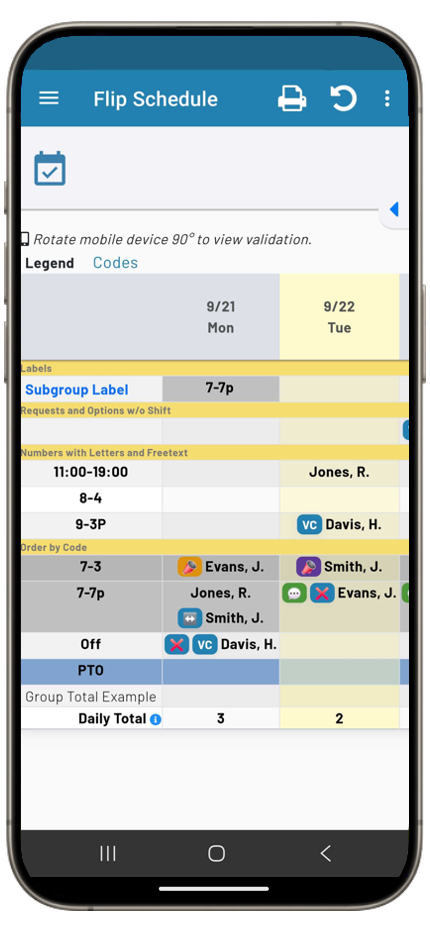
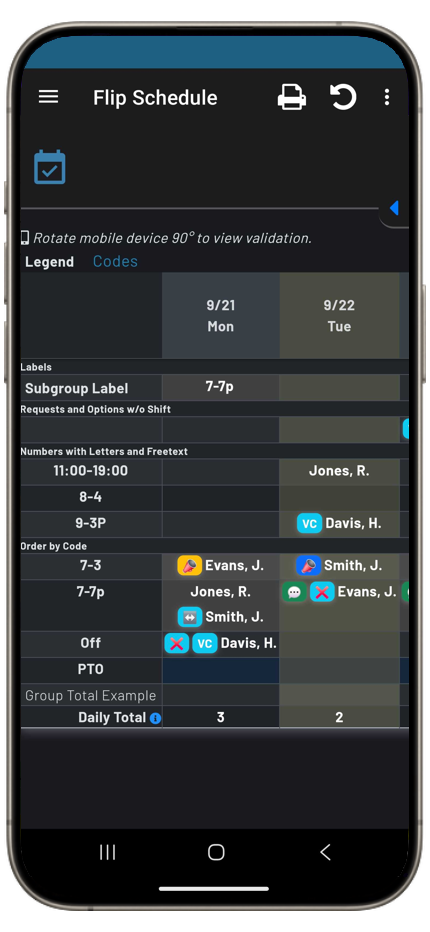
The view of the repeating schedule can be configured to both repeat and be viewed as a 1-4 week timespan
Validation visibility
Validation indicators appear above each date to draw attention to schedule items in need of review based on your schedule settings.
Hide non-essential information
Link-only and informational staff are not presented, keeping the important entries as the focus.
Indentifiable changes
Confirmations and current statuses are visible on schedule entries to provide the current context of the schedule.
Daily totals
Configured daily totals and customizable group totals can be displayed at the top or bottom of the reverse schedule to support fast tallies..